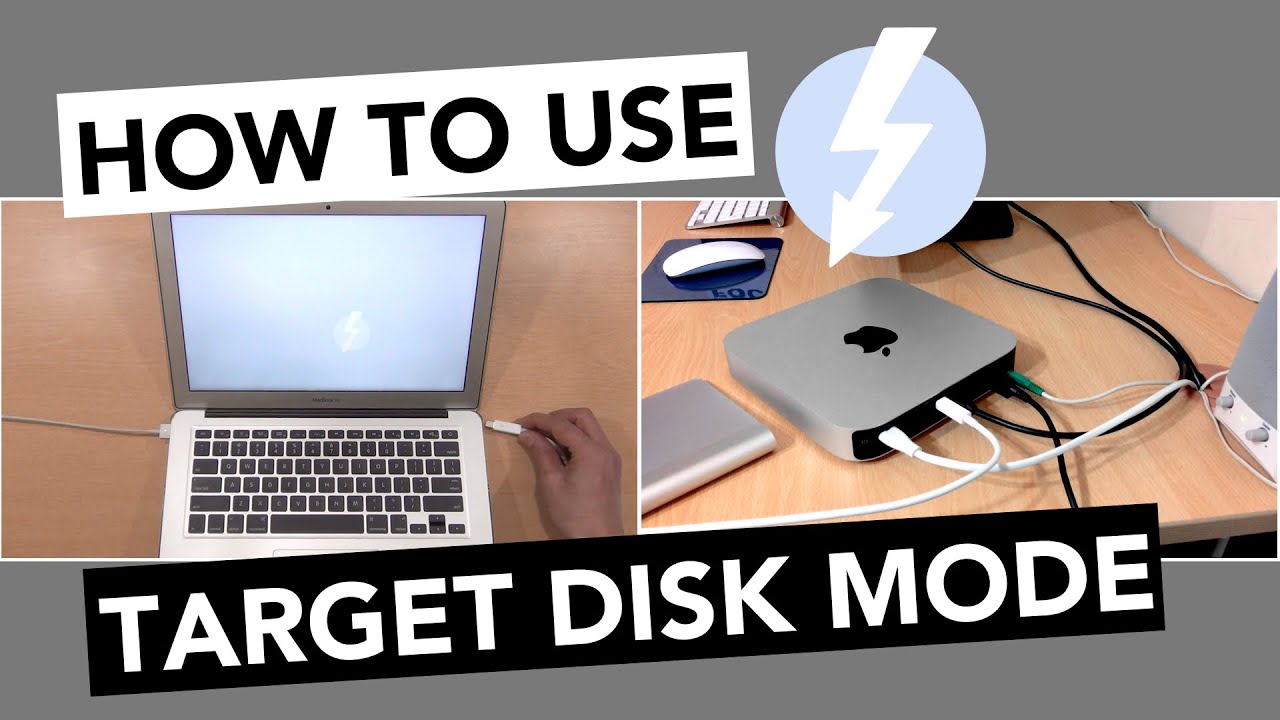
How To Use Target Disk Mode on Mac, and Why It’s A Good Idea To Set A Firmware Password when Enabling Target Disk Mode on a Mac. Protect Your Precious and Confidential Files When Enabling Target Disk Mode By Setting A Firmware Password On Your Mac. This Video Will Demonstrate: How To Boot or Put a Mac in Target Disk Mode and How To Exit Target Disk Mode. How Easy It Is To Compromise a Mac in Target Disk Mode and How To Prevent Someone besides Yourself From Accessing Your Files. When Enabling Target Disk Mode on one Mac, You Can Copy, Transfer, or Share Files At High Speed on Another Mac When Connected via. a Thunderbolt, Firewire or USB-C Cable. How To Set A Firmware Password on Your Mac: Protect Your Investment Mac Lock-Down: https://youtu.be/Uz2LjuR_Rhs Forgot macOS Sierra Login Password: https://youtu.be/c9-0aOJCA6w How To Reset Mac OS X Forgotten Password: https://youtu.be/ohvlp3fPp1s SUBSCRIBE For More Videos Like This:http://goo.gl/88PNgx FYI: Click BELL ICON To Be Notified Of Next Episode. Follow me on: http://instagram.com/sergesiou https://twitter.com/SergeSiou Additional Links: Target Disk Mode (info. From Apple): https://support.apple.com/en-us/HT201462 Target Disk Mode (info. From Wikipedia): https://en.wikipedia.org/wiki/Target_... Firmware Password (info. From Apple): https://support.apple.com/en-us/HT204455 Recommended Gear: RAID Thunderbolt 3 External Hard Drive: https://amzn.to/2POl2Ul 2TB Thunderbolt and USB 3.0 Portable Hard Drive: https://amzn.to/2DvLX1u 4TB USB-C and USB 3.0 Portable Hard Drive: https://amzn.to/2JRzF3N 5TB Rugged Thunderbolt / USB-C Mobile Drive: https://amzn.to/2PNfzwP Variable Friction Magic Arm: https://amzn.to/2qEhJ3S Rode VideoMic Pro Plus: https://amzn.to/2yZ1Tp0 RAW TRANSCRIPT: If you own a Mac, then you should be watching this video. In this episode, Why It’s A Good Idea To Set A Firmware Password On Your Mac. No matter how elaborate your Mac login password might be, it’s possible to gain access to your precious and confidential files very easily without requiring your login password. Basically, macOS has a feature called Target Disk Mode, once enabled, it allows you to copy files at high speeds between two Macs that are connected via a Thunderbolt cable. With target disk mode enabled on one Mac, it appears and functions as an external disk on another Mac. However, to prevent someone besides yourself from accessing your files, when enabling Target Disk Mode, it’s a good idea to set a Firmware Password on your Mac. I won’t go into how to set a Firmware Password on a Mac, as this was already covered in detail on the video titled: “Protect Your Investment Mac Lock-Down”. The following demo will show, how to activate Target Disk Mode on a Mac when a Firmware Password is not set and when a Firmware Password is set. For this demo, I’ll be using a Mac mini, a MacBook Air, and a Thunderbolt cable. Let's first consider activating Target Disk Mode on the MacBook, when a Firmware Password is not set. Therefore, with the MacBook turned off, immediately after pressing the Power Button, press and hold down the T key until a lightning bolt image floating around on the screen appears. This is an indication that your MacBook is now in Target Disk Mode or in other words, a glorified external hard drive. Now, with Target Disk Mode enabled on the MacBook, simply connect a Thunderbolt cable from the MacBook to the Mac mini. As you’ll notice, the Hard drive or drives from the MacBook appears on the Desktop of the Mac mini. Now simply drag and drop files that you want to copy. Once done, eject the drives by dragging to Trash and unplug the Thunderbolt cable. To exit Target Disk Mode on the MacBook, press the power button. As was shown, it was that easy to enable Target Disk Mode on a Mac when a Firmware Password was not set in order to gain access to files and without requiring a login password. However, if a Firmware Password was set on the MacBook, it is not possible to activate Target Disk Mode by pressing the T key after pressing the power button as was shown earlier, doing so, will just bring you to the login screen. The only way to enable Target Disk Mode on the MacBook, is by signing in with your login password. Then, from System Preferences, click on the Startup Disk icon, enter your Admin password to unlock the panel and click on the Target Disk Mode button. From the pop-up dialogue window, click Restart button. After clicking the Restart button, you are asked to enter a Firmware Password, once entered, you’ll see the floating lightning bolt image as shown earlier, and like before, simply connect a Thunderbolt cable from one Mac to another to copy files. Therefore, to prevent someone, besides yourself from accessing your precious files via Target Disk Mode, watch video titled:“Protect Your Investment Mac Lock-Down”, showing how to set-up a Firmware Password.

Không có nhận xét nào:
Đăng nhận xét